Setup guide · Connections
HDMI for a projector: cables, versions, ARC and USB-C to HDMI explained
HDMI is the one cable that carries picture and sound from a laptop, phone or TV box into a projector. For a portable projector that shows 1080p or less, a certified High Speed HDMI cable is enough; ARC only matters when sound must go back out to a soundbar; and USB-C to HDMI works only if the device's USB-C port carries video. All seven Neon+ projectors list "Support HDMI 2.0 input".
Reviewed 24 November 2026
Key takeaways
In short
- Buy the cable by its official name, not a version number. A High Speed HDMI Cable (up to 10.2Gbps, 1080p and 4K@30Hz) covers every native picture in the Neon+ range.
- HDMI 2.2, released in June 2025, and its Ultra96 cable (up to 96Gbps) change nothing for a 1080p portable projector bought today.
- USB-C to HDMI works only when the phone or laptop sends video over USB-C. The iPhone 15 and later models do, except the iPhone 16e and 17e.
- An HDMI cable is in the box of 2 of the 7 Neon+ projectors, the K5 and V6; order one with the others, especially for Sabah or Sarawak.
- Neon+'s Terms put device compatibility outside the warranty. It has showrooms in Ipoh, Kota Kinabalu and Sibu; ask whether you can try your own laptop or phone there before you buy.
On this page16 sections
Method and scope HDMI versions, cable types, certification, cable length, ARC, eARC and HDMI Alt Mode are as HDMI Licensing Administrator publishes them; DisplayPort over USB-C is VESA's; the iPhone, adapter and HDCP facts are Apple Support's; the Windows projection modes and troubleshooting are Microsoft Support's. Neon+ prices, resolutions, HDMI, sound and packing-list lines are as Neon+ publishes them on its product pages, FAQ, Terms and Delivery pages, read on 24 November 2026. The worked example's totals are our own arithmetic from those prices; nothing here is our own measurement.
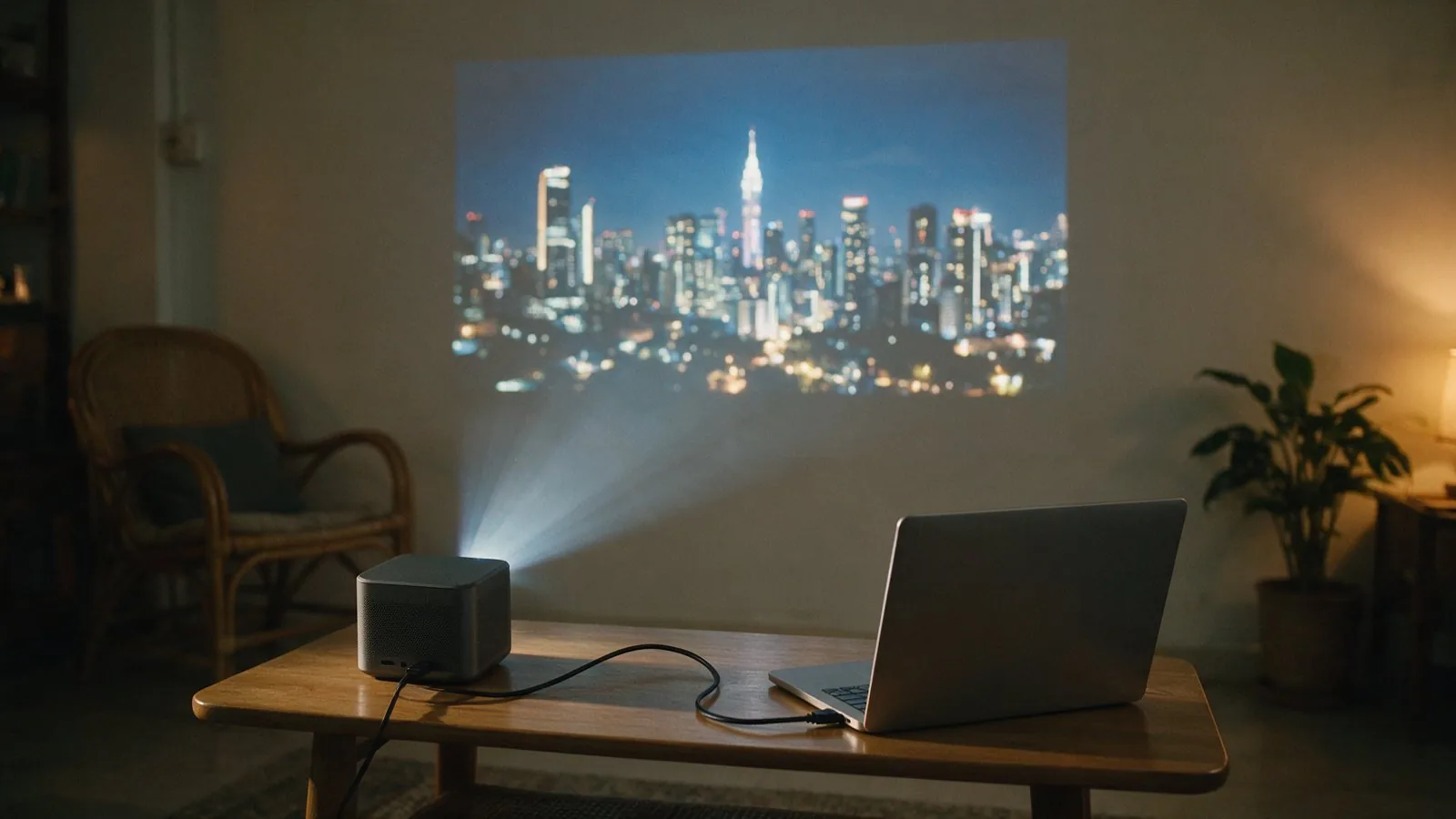
What does HDMI do on a projector?
HDMI carries the picture, the sound and some control data from a source device to the projector over one cable. In the words of the body that licenses it, the HDMI Specification "combines uncompressed high-definition video, multi-channel audio, and data in a single digital interface to provide crystal-clear digital quality over a single cable."
Every HDMI link has two ends: the source sends (a laptop, a phone on an adapter, a TV box, a console) and the display receives. That is why a projector's sheet speaks of an HDMI input. Neon+ lists "Support HDMI 2.0 input" on all seven of its projectors, and its FAQ says all its devices come with a USB port, HDMI port, Bluetooth and Wi-Fi.
HDMI is not the only way in. Every Neon+ sheet also lists wireless screen sharing, over the same Wi-Fi network or outdoors through the projector's own hotspot, and a smart projector runs its own apps; the smart projector guide covers both.
Choose HDMI when the network is weak or missing, or for a TV box or console: every Neon+ sheet lists computers and set-top boxes among the inputs it supports.
For the wider buying decision, start with how to choose a portable projector. This guide is about getting the cable link right.
Which HDMI version does a projector need: 1.4, 2.0, 2.1 or 2.2?
For a portable projector that shows 1080p or less, an HDMI 2.0 input is already more than the picture can use. The version number describes the features a port may support, and each newer version keeps working with older devices, so the real limit is the lowest version on either end and, above all, the projector's own native resolution.
Here is what each version added, from the HDMI Licensing Administrator's own pages:
| Version | What it added | Cable it pairs with | What it means for a portable projector |
|---|---|---|---|
| HDMI 1.4b | 4K at 24, 25 and 30 Hz (3840×2160) and Audio Return Channel (ARC) | High Speed HDMI Cable | Enough for a 1080p picture; also the feature set HDMI Alt Mode carries over USB-C |
| HDMI 2.0 (4 September 2013) | Up to 18Gbps and 4K at 50/60 (2160p) | High Speed; Premium High Speed for certified 4K60 and HDR | The input Neon+ lists on all seven models |
| HDMI 2.1 | Up to 48Gbps, with 8K@60 and 4K@120 formats | Ultra High Speed HDMI Cable (on sale since 2020) | Matters for high-frame-rate gaming on a screen that can show it, not for a 1080p portable |
| HDMI 2.2 (released June 2025) | Up to 96Gbps, with 4K240 and 8K60 | Ultra96 HDMI Cable | No effect on what a portable projector shows today; it works with older devices |
Why the native resolution decides: the HDMI Forum describes HDMI 2.0's 4K@50/60 as "4 times the clarity of 1080p/60 video resolution". The sharpest Neon+ models, the Q1, X5 and X5 Plus, list a physical resolution of 1920 × 1080, and no Neon+ model lists a 4K panel. A faster port cannot add pixels the panel does not have.
Neon+'s sheets also list a decode line, "MTK Decode 4K H265/AVS2 4K*2K/30HZ", which is about playing video files, not about the HDMI input or the panel.
What changed lately: HDMI 2.2 was announced in January 2025 and released in June 2025, with the Ultra96 cable. HDMI LA calls it "backward compatible with earlier versions of the Specification", so existing cables and devices keep working, and its headline formats such as 4K240 and 8K60 are far beyond what any portable projector shows. Nothing about it changes what a projector buyer needs in 2026.
The native resolution guide explains the difference between what a projector shows and what it accepts, and why a 4K signal on a 1080p projector still looks like 1080p.
Which HDMI cable should you buy for a projector?
Buy a certified High Speed HDMI Cable for a 1080p-or-lower projector, or a Premium High Speed HDMI Cable if the source sends 4K at 60Hz with HDR, such as a recent TV box or console. Read the official cable name on the cable jacket, not the "2.1" or "8K" printed on the box.
HDMI cables are certified by type, and the type carries the performance. HDMI LA lists them like this:
| Official cable name | Tested for | Bandwidth | Buy it for a projector when |
|---|---|---|---|
| Standard HDMI Cable | 720p or 1080i | Not stated by HDMI LA | Never for a new setup; it does not support later resolutions |
| High Speed HDMI Cable | 1080p and beyond, including 4K@30Hz and 3D | Up to 10.2Gbps | The source and the projector are 1080p or lower: every Neon+ model |
| Premium High Speed HDMI Cable | 4K60, HDR, BT.2020 colour | Up to 18Gbps | The source sends 4K60 or HDR, or you want the same cable to serve a 4K TV later |
| Ultra High Speed HDMI Cable | 8K@60 and 4K@120 | Up to 48Gbps | The display has HDMI 2.1 features to use |
| Ultra96 HDMI Cable | All HDMI 2.2 features | Up to 96Gbps | Not needed for a projector you can buy today |
For a 1080p display fed by a 1080p source, HDMI LA's own advice is plain: the High Speed HDMI Cable "is the recommended cable." HDMI 2.0 did not even bring a new cable. The HDMI Forum's 2013 release says "Version 2.0 of the HDMI Specification does not define new cables or new connectors."
The trouble is telling a real cable from a mislabelled one. HDMI LA warns that resellers "may not use the official HDMI Cable name designations", that many websites recommend cables "only based on receiving affiliate payments", and that some cables are counterfeits. Three checks help:
- Look for the official name printed on the cable jacket. HDMI LA says all HDMI cables are required to be labelled with their official cable name on the jacket.
- On a Premium High Speed, Ultra High Speed or Ultra96 cable, scan the certification label on the pack with your phone's camera. HDMI LA says the labels can be scanned by standard QR code apps.
- Check the length you are buying is the length certified. For Premium cables, HDMI LA requires every length of every model line to be tested, because a longer cable is electrically a different cable.
The K5 and V6 come with an HDMI cable; for the other five models you bring or buy your own. What comes in each Neon+ box lists the rest.
How long can an HDMI cable be, and what about long runs?
For a portable projector placed near the laptop or TV box, a short passive cable is the simplest and surest choice. For a long run, across a classroom, a hall or up to a ceiling, look at an active optical HDMI cable instead of a longer copper one.
HDMI LA does not give one maximum length; what limits a cable is the speed it must carry.
As speeds have risen, HDMI LA notes, passive cables have been "getting shorter or made thicker to compensate for the higher operating frequencies". Its answer for distance is the active optical cable: "Many manufacturers are turning to active optical cable (AOC) assemblies, using a hybrid of optical fibers for the high-speed lanes and traditional copper for the auxiliaries. This enables much longer lengths in a relatively thin cable."
Active cables have two habits that catch people out:
- They only work one way round. One end is marked for the source, the other for the display. HDMI LA says that if the cable is attached in reverse, "no damage will occur, but the connection will not work." Plug the source end into the laptop or TV box, the other into the projector.
- Some need power. Cables with the HDMI Cable Power feature draw power from the source's HDMI port; for sources without that feature they carry a separate power plug: "Typically, these connectors will be USB Micro-B or USB Type-C", so keep a USB power source near the source end.
At the top speeds, length gets harder still: HDMI LA expects that Ultra High Speed cables longer than a few metres will likely need to be powered, active cables.
In a classroom, plan the cable route before you fix the projector's place; the classroom setup guide covers placement, and the throw ratio guide tells you how far from the wall the projector will sit.
How do you connect a laptop to a projector with HDMI?
Plug the HDMI cable into the laptop and the projector, switch the projector to its HDMI input, then on Windows press the Windows logo key + P and choose how the picture shows. If the laptop has no HDMI port, use a USB-C to HDMI adapter, which only works if the laptop's USB-C port sends video.
The steps in this section are for Windows, as Microsoft Support publishes them; a Mac has its own display settings, which this guide does not cover. Windows offers four projection modes when you press Windows logo key + P:
| Mode | What the projector shows | Use it for |
|---|---|---|
| PC screen only | Nothing; the laptop screen only | Turning the projector picture off without unplugging |
| Duplicate | The same picture as the laptop | Lessons and demos where you face the class and the screen at once |
| Extend | A second desktop beside the laptop's | Slides on the wall while your notes stay on the laptop |
| Second screen only | The picture, with the laptop screen off | Films, where the laptop screen would only distract |
If small text looks soft in Duplicate, try Extend: the laptop and the projector rarely share a native resolution (960 × 540 on the K5 and C2000, 1280 × 800 on the V6 and V8), and Extend gives the projector a desktop of its own.
Two things not to do. Do not expect an HDMI splitter to give you a second screen: Microsoft says "The splitter is duplicating the same signal instead of creating two independent signals." And do not leave a dock or a chain of adapters in the path while you troubleshoot; Microsoft says connected docks, dongles and adapters "can cause conflicts".
Does USB-C to HDMI work, and which adapter do you need?
A USB-C to HDMI adapter, often sold as a Type-C to HDMI adapter, works only when the phone, tablet or laptop sends video through its USB-C port. The connector shape tells you nothing; the port has to support a video mode, usually DisplayPort over USB-C, and the adapter converts that to HDMI for the projector.
There are two ways video travels over USB-C. The common one is DisplayPort Alternate Mode: VESA, which writes the DisplayPort standard, says it is "Backward compatible with VGA, DVI, and HDMI 2.0 with CEC using plug adapters or adapter cables" and carries 4K at 60Hz, with up to 100 watts of power on the same cable.
The other is HDMI Alt Mode, which lets a device use a USB Type-C connector to connect directly to an HDMI display; HDMI LA adds that "It’s up to manufacturers to choose which HDMI features they support on their products with USB Type-C."
So before you buy an adapter, check that your device's maker lists video output, DisplayPort or an external display on its USB-C port; some devices charge and move data over USB-C but send no picture.
Which adapter to choose:
- A simple USB-C to HDMI adapter or cable for one job, one screen.
- A USB-C hub with HDMI and power pass-through when the laptop must charge during a long lesson. Neon+ lists one on its shop, the KEYMOX USB C Hub 6-in-1 Multiport Dongle at RM89.90, published with an HDMI port that supports "Up to 3840X2160P/30HZ" and pass-through charging of up to 100W. It showed out of stock on 24 November 2026, and its listing names no projector model.
- A 4K at 30Hz limit is no limit here. The hub's 3840 × 2160 at 30Hz is more than the 1920 × 1080 the sharpest Neon+ model shows natively.
One trap is specific to the Neon+ range. The C2000 has a USB-C port, but its sheet describes it as "Type-C port charge, support with Type-C protocol mobile power supply and power adapter to power the machine". As Neon+'s sheet describes it, the port powers the projector rather than taking video, so a laptop's picture still goes in through the C2000's HDMI input.
How do you connect a phone to a projector by cable?
An iPhone 15 or later, except the iPhone 16e and 17e, connects through a USB-C to HDMI adapter into the projector's HDMI input; older iPhones use Apple's Lightning Digital AV Adapter. Android phones work the same way when the maker lists video output over USB-C. Three Neon+ models also list a wired phone connection of their own.
Apple's support pages set out the iPhone side:
- iPhone 15 and later models have a USB-C connector. External displays over USB-C are supported on the iPhone 15 models, the iPhone 16 models (except iPhone 16e), the iPhone 17 models (except iPhone 17e) and newer models Apple lists.
- Apple says iPhone models that cannot connect to an external display over USB-C, such as the 16e and 17e, can mirror with AirPlay instead. On a Neon+ projector, the cable-free route is the wireless screen sharing every model lists.
- "Adapters and cables that support HDMI 2.0 can output video from your iPhone at 4K resolution and 60Hz." Apple says iPhone uses the DisplayPort protocol for this.
- The projector mirrors the iPhone, except in apps with a second-screen experience such as video apps.
- Older iPhones use a Lightning Digital AV Adapter (HDMI). Apple's adapters have an extra port, so the iPhone can charge while connected to a projector.
For Android, there is no single rule: each phone maker decides whether its USB-C port sends video. Check the phone's own specification for video output or DisplayPort before buying an adapter.
On the Neon+ side, the C2000 lists "Support data cable(wired) same screen technology for IPhone and Android mobile phone", and the X5 and X5 Plus list "Supports ios screen projection with a cable".
The Q1, K5, V8 and V6 publish no wired phone line, so for those the cable route is HDMI through an adapter, and every model also lists wireless screen sharing.
What are HDMI ARC and eARC, and does a projector need them?
ARC (Audio Return Channel) lets a display send sound back down the HDMI cable to a soundbar or AV receiver; eARC is its newer, higher-quality form. A projector needs them only if you want the projector's own apps to play through a soundbar over HDMI. Every Neon+ model also lists Bluetooth 5.0, so a speaker or soundbar can often be paired without HDMI at all.
ARC arrived with HDMI 1.4: it "allows an HDMI-connected TV to send audio data" upstream to an AV receiver or soundbar, so you do not need a separate audio cable. eARC came with later versions and, per HDMI LA, supports uncompressed 5.1 and 7.1, and 32-channel uncompressed audio. Both need the feature at each end: on the display and on the soundbar or receiver.
Here is how sound leaves each Neon+ projector, as published:
- Bluetooth 5.0 on every model, for a Bluetooth speaker.
- A 3.5 mm audio output on every model except the C2000.
- S/PDIF on the X5 and X5 Plus only, listed as "S/PDIF Supports 5.1 channel connection".
- HDMI: Neon+'s FAQ says "All our models are equipped with HDMI ports for high quality audio and video output", and that the HDMI port carries sound out as well as picture. The spec sheets list the port as "Support HDMI 2.0 input" and do not use the words ARC or eARC.
In practice: if your soundbar takes Bluetooth, or S/PDIF on the X5 and X5 Plus, those routes are on the sheets. For sound out over HDMI to a soundbar, ask Neon+ whether your soundbar will work before you buy. The speaker guide compares the built-in speakers, Bluetooth speakers and soundbars.
What is HDCP, and why does a streaming app show a black screen over HDMI?
HDCP (High-bandwidth Digital Content Protection) is copy protection that films, TV shows and many streaming apps demand on the cable. If any link in the chain does not support it, the app refuses to play and you see a black screen or a warning instead of the film.
Apple puts it simply: "Movies, TV shows, and certain streaming video apps require High-Bandwidth Digital Content Protection (HDCP)." On a non-HDCP connection, such as a VGA adapter, an alert will ask for an HDCP-compatible device. The good news is that the standard USB-C routes support it: HDMI Alt Mode carries HDCP 1.4 and HDCP 2.2, and VESA lists HDCP 2.2 for DisplayPort over USB-C.
If a box in the middle, such as an HDMI-to-VGA adapter or a format converter, does not support HDCP, protected video will not play through it. Apple's own advice when a picture fails is: "Remove any VGA or HDMI extension cables or converters." Note too that a VGA adapter does not carry audio.
The simplest fix is often not to cast the stream at all: a smart projector can run the app itself. Whether a given app installs and plays is a separate question, covered in the guide to watching Netflix on a portable projector.
Why does the projector say "No signal", and how do you fix it?
A "No signal" message usually means the wrong input is selected, the laptop is set to show nothing on the second screen, or a cable or adapter is faulty. Work through these steps in order; each one rules out a cause, and the first, the input setting, is the quickest to check.
- Select the HDMI input on the projector. Use the remote's source or input setting. A projector showing its home screen is not looking at HDMI.
- Reseat both ends. Unplug and firmly re-plug the cable at the projector and at the source. Do the same with any adapter.
- On a Windows laptop, press Windows logo key + P. Choose Duplicate or Extend; Microsoft's own first check for a blank external screen is that Extend is selected.
- Take out everything in the middle. Remove docks, hubs, splitters, extension cables and converters, and connect the source straight to the projector. Microsoft says these can cause conflicts.
- Try another cable. Microsoft's test: "If the new one works, you know the previous cable was faulty."
- Check the direction of an active cable. A reversed active or optical cable causes no damage but shows no picture.
- Check the USB-C port sends video. If a USB-C adapter shows nothing, the device's port may not support video output at all. On the C2000, use the HDMI input, not the USB-C power port.
- Reset the laptop's graphics driver. On Windows, press Windows logo key + Ctrl + Shift + B to reset the graphics driver, or restart.
- Look for an HDCP warning. If the menus show but a film will not, the problem is copy protection, not the cable; see the section above.
- Test the source on another screen. If the laptop or TV box works on a TV with the same cable, the issue is between the source and this projector; call Neon+ on +6012-565 2091 with both model names.
What does each Neon+ projector list for HDMI, sound and cables?
All seven Neon+ projectors list an HDMI 2.0 input; they differ in native resolution, whether an HDMI cable is in the box, how sound gets out and whether a phone can connect by its own cable. This table puts the published lines side by side, prices as shown on the shop on 24 November 2026.
| Model | Price | Physical (native) resolution | HDMI | HDMI cable in the box | Sound out (besides Bluetooth 5.0) | Wired phone line |
|---|---|---|---|---|---|---|
| Q1 | RM799 | 1920 × 1080 | HDMI 2.0 input | No | 3.5 mm | None listed |
| C2000 | RM1,359 | 960 × 540 | HDMI 2.0 input | No | None listed (no 3.5 mm) | iPhone and Android, by cable |
| K5 | RM2,299 | 960 × 540 | HDMI 2.0 input | Yes | 3.5 mm | None listed |
| V8 | RM2,899 | 1280 × 800 | HDMI 2.0 input | No | 3.5 mm | None listed |
| V6 | RM3,800 | 1280 × 800 | HDMI 2.0 input; also an AV input | Yes | 3.5 mm | None listed |
| X5 | RM4,599 | 1920 × 1080 | HDMI 2.0 input | No | 3.5 mm; S/PDIF 5.1 | iOS, by cable |
| X5 Plus | RM4,999 | 1920 × 1080 | HDMI 2.0 input | No | 3.5 mm; S/PDIF 5.1 | iOS, by cable |
Three things stand out: only the K5 and V6 ship with an HDMI cable; only the X5 and X5 Plus list S/PDIF for a 5.1 sound system; and the C2000 alone has no 3.5 mm output. Prices change; the Projectors page always shows the live price, and the connections checklist covers the USB, Ethernet and Wi-Fi lines too.
Worked example: what does it cost to connect a USB-C laptop and an iPhone 15?
With a USB-C-only laptop and an iPhone 15, the K5 route needs one extra item, a USB-C to HDMI adapter, because an HDMI cable is in its box; the V8 route needs the adapter and a cable. With the RM89.90 hub Neon+ lists, that is RM2,388.90 against RM2,988.90 before the cable.
The illustrative case: a tuition teacher in Kota Kinabalu, a slim USB-C-only laptop, an iPhone 15 for photos of pupils' work, and a choice between the K5 and the V8.
| Item | K5 route | V8 route |
|---|---|---|
| Projector | RM2,299 | RM2,899 |
| USB-C to HDMI adapter or hub (the KEYMOX hub Neon+ lists) | RM89.90 | RM89.90 |
| HDMI cable | In the box | Buy separately: a certified High Speed cable is enough |
| Total before any cable | RM2,388.90 | RM2,988.90 |
A USB-C to HDMI adapter that supports DisplayPort over USB-C should serve both devices: the laptop, if its USB-C port sends video, and the iPhone 15, which Apple says uses the DisplayPort protocol. The KEYMOX listing names no phone, so ask Neon+ to confirm it with an iPhone before relying on it. The hub's pass-through charging keeps the laptop going through a long class, and its 4K at 30Hz limit does not matter on either projector.
The RM600 between the two routes, plus the price of a High Speed HDMI cable for the V8, buys the V8's brighter, sharper picture: Neon+ lists the V8 (600 ANSI lumens, 1280 × 800) against the K5 (350 ANSI lumens, 960 × 540). With more pixels on the wall, fine text from a laptop is easier to read on the V8. The price guide sets out what each step of the range adds.
The local catch: Neon+ has a branch showroom in Kota Kinabalu, so this teacher can visit it and ask to see the K5 and V8 before buying. Buyers elsewhere in Sabah and Sarawak who order online should allow up to 3 weeks for delivery, so order the adapter and, for the V8, the cable with the projector, and the first lesson does not wait on a second parcel. The hub showed out of stock on 24 November 2026; another USB-C to HDMI adapter does the same job if the laptop's port sends video. Neon+ posts orders within 3 working days of payment, with free delivery on orders over RM50 across Malaysia, Sabah and Sarawak included.
What mistakes do people make with HDMI on a projector?
The common mistakes are overbuying the cable, assuming every USB-C port carries video, using the C2000's power port, expecting ARC and forgetting the cable. Each one costs money or a lesson; the sections above explain each in full, so this list is a short checklist before you order.
- Paying for an "8K" or "2.1" cable for a 1080p projector. The extra bandwidth is paid for and never used.
- Assuming a USB-C port sends video. The adapter then shows nothing; check the maker's specification first.
- Plugging a laptop into the C2000's USB-C port. The picture goes in by HDMI.
- Expecting HDMI ARC on a portable projector. The Neon+ sheets do not list it; plan sound on the routes they do list.
- Forgetting the cable when ordering. A second parcel to Sabah or Sarawak can take up to 3 weeks.
When does the usual HDMI advice not apply?
The usual advice, a short High Speed cable straight from the source, stops being enough for a 4K HDR source, a long run, a 5.1 sound system, a place with no cable at all, and an old device with no HDMI output.
- A 4K HDR source. A recent TV box or console may send 4K60 HDR. A Premium High Speed cable is certified for that; what the projector then shows is still limited to its native resolution, and the Neon+ sheets do not say which signal resolutions the HDMI input accepts, so ask Neon+ before you rely on it.
- A 5.1 sound system. The X5 and X5 Plus list S/PDIF for a 5.1 connection. On the other models the sheets list Bluetooth and the 3.5 mm output, not S/PDIF; ask Neon+ before planning 5.1 over HDMI.
- No cable needed. Outdoors, or where cables trip people, every Neon+ model lists wireless screen sharing, including through its own hotspot when there is no network. The battery or plug-in guide covers running a projector away from a socket.
- An old laptop with only VGA. No Neon+ sheet lists a VGA input. A VGA-to-HDMI converter can bridge the gap but carries no protected content and, as Apple notes for its own VGA adapter, VGA carries no audio. The V6 also lists an AV input; ask Neon+ what it accepts before you plan around it.
One more exception is about the warranty, not the cable. Neon+'s Terms do not cover incorrect operation caused by a "connecting source such as personal computer, laptop, media player (digital optical disc/data storage based) or set-top box", and add that "Device compatibility with other devices is also out of scope for warranty as it is not a manufacturing fault of the device that compatibility issues arise."
If your setup depends on one particular laptop, phone or TV box, try that device with the projector before you buy. Neon+'s FAQ invites buyers to its flagship store to see the full range. The Ipoh headquarters opens 9am–5pm Monday to Friday and 9am–1pm Saturday and asks you to call +6012-565 2091 before you visit; ask then whether you can bring your own device.
Quick answers
Frequently asked questions
Does an HDMI cable carry sound to the projector?
Yes. HDMI carries uncompressed video, multi-channel audio and data in one cable, so a laptop, TV box or phone adapter sends its sound to the projector with the picture. Check the source's sound output is set to the projector if you hear nothing.
Is a more expensive HDMI cable better for a projector?
Not by price. What matters is the certified cable type and length. For a projector that shows 1080p or less, a certified High Speed HDMI Cable does the job; a Premium High Speed cable adds certified 4K60 and HDR. Read the name on the jacket and scan the label where there is one.
Can I use an HDMI splitter with a projector?
Yes, to show the same picture on a projector and a TV at once. A splitter cannot give you a second, extended desktop: Microsoft notes it duplicates one signal rather than creating two independent ones. For slides on the wall and notes on the laptop, connect the projector directly and choose Extend.
Do I need Wi-Fi to use HDMI on a projector?
No. HDMI is a cable link and works with no network. Wi-Fi matters only for the projector's own apps and for wireless screen sharing; every Neon+ model also lists sharing through its own hotspot when there is no network. Turning the projector's Wi-Fi off does not affect the HDMI picture.
Can I connect a TV box or games console to a Neon+ projector?
Every Neon+ sheet lists computers and set-top boxes among the inputs it supports, through the HDMI 2.0 input. Consoles are not named, and Neon+'s Terms put device compatibility outside the warranty, so ask Neon+ about your own console before you rely on it.
Can I test my laptop or phone with a Neon+ projector before buying?
Neon+'s FAQ invites buyers to its flagship store to experience the full range of its projectors, and it has showrooms at its Ipoh headquarters and in Kota Kinabalu and Sibu. It does not say whether you can test your own devices, so call +6012-565 2091 before visiting the Ipoh headquarters and ask to try your own laptop, phone, adapter and cable.
Sources
Sources
- HDMI Licensing Administrator, versions: HDMI Forum releases Version 2.0 of the HDMI Specification (4 September 2013), HDMI 1.4b, HDMI 2.2 Specification and press releases, read 24 November 2026.
- HDMI Licensing Administrator, cables: HDMI cable types, Premium HDMI Cable Certification Program, Ultra96 and Ultra High Speed HDMI Cable, HDMI cables for system installations and HDMI Cable Power, read 24 November 2026.
- HDMI Licensing Administrator, sound and USB-C: eARC and HDMI Alt Mode for USB Type-C, read 24 November 2026.
- VESA, DisplayPort over USB-C, read 24 November 2026.
- Apple Support, Charge and connect with the USB-C connector on your iPhone, Connect iPhone to a display with a cable and Get help with Apple Digital AV adapters, read 24 November 2026.
- Microsoft Support, Connect to a projector or PC and Troubleshoot external monitor connections in Windows, read 24 November 2026.
- Neon+ product specification tables and shop listings on neonplus.com.my, the FAQ, the Terms and conditions (section 6) and Delivery and refund, read 24 November 2026.
Not sure what your devices need?
Tell Neon+ which laptop, phone, TV box or console you will connect, how far it sits from the projector and how you want the sound to play, and ask which model and cable fit.
More Neon+ guides and pages
- About Neon+, the portable projector brand from Ipoh
- Contact Neon+: phone, email and the Ipoh showroom
- Neon+ questions, answered
- Projector glossary: spec-sheet terms, defined
- Neon+ projector guides
- Neon+ privacy policy
- Neon+ V6 projector specifications
- How to choose a portable or mini projector in Malaysia: start with the room
- Native resolution vs supported input: what projector buyers should check
- Battery projector or externally powered projector?
- How room light and image size affect projector brightness in a classroom
- Which projector connections should you check before buying?
- Do you need an external speaker with a portable projector?
- What comes in a Neon+ projector box, and what else do you need?
- Can you watch Netflix on a portable projector?
- Auto focus or manual focus: which projector suits how you use it?
- How much electricity does a portable projector use, and what does it cost to run?
- Projector or TV: which suits your classroom or living room?
- DLP vs LCD projector: how each works and what it means when you buy
- What is a smart projector, and do you need one in Malaysia?
- Projector price in Malaysia (2026): what each price buys
- How to set up a classroom projector in Malaysia
- What a 1.2:1 throw ratio means for projector distance and placement
- Classroom projector setup checklist: pre-lesson checks
- Projector screen, white wall or whiteboard: what should you project onto?
- Neon+ warranty, delivery and support: what to know before you buy
- Projector showroom visit checklist: what to measure and test
- How do you clean and store a projector in Malaysia's humidity?